
FREE 2D CAD · OPTIONAL AI · BETA
From drawing to a PDF you can share.
Open a supported 2D DWG or DXF in CadFreely, inspect the drawing and use Plot to export a PDF. The manual CAD tools and PDF workflow do not require an account.
Export a drawing to PDF
- Open CadFreely and load a copy of your DWG or DXF. Let the import finish and check the drawing units, text and references.
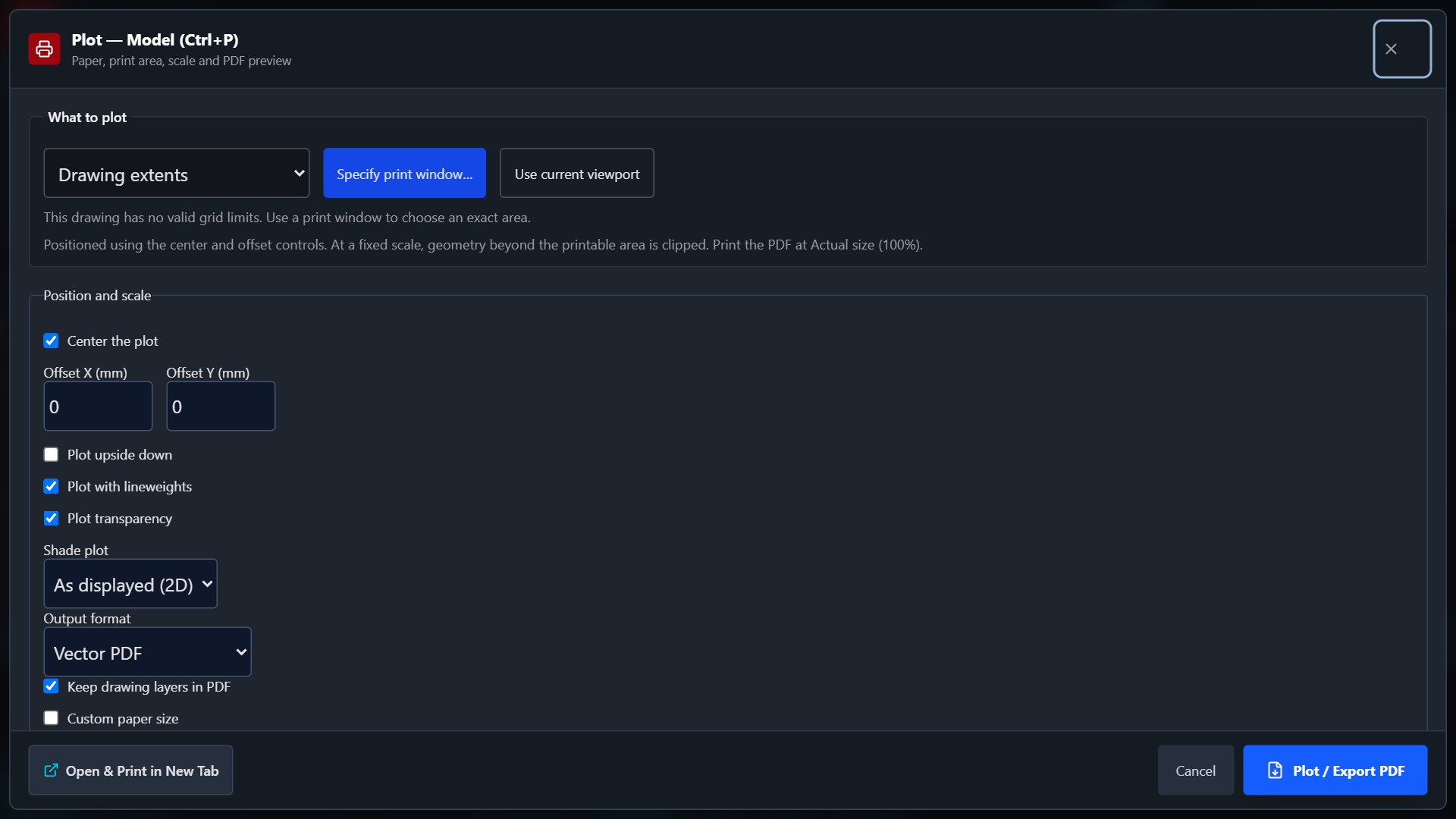
- Type PLOT in the command field to open Plot drawing.
- Choose PDF in Output format. Set the paper size and portrait or landscape orientation.
- Choose the Plot area: drawing extents, the current display, a saved view or a prepared window. A paper layout has its own layout plotting option.
- Check Plot scale. A fit setting is useful for review; choose and verify a specific scale when the printed size matters.
- Export, open the downloaded PDF and inspect every page before sharing or printing it.
Check the sheet, not just the screen
Look for missing text, clipped geometry, unexpected lineweights and hidden layers. A file with missing external pictures or fonts can still open, so resolve those references before exporting.
For a scale-sensitive print, measure a known distance in the PDF or on a test print. A print dialog's own fit-to-page option can change the scale again.
Keep the editable drawing
A PDF is a plotted sheet, not a replacement for the source DWG or DXF. Save the drawing separately so you can return to its objects, layers and dimensions.
Save the PDF from your browser's download area on a phone or tablet. The filename and destination are controlled by the browser and device settings.
If the output is blank or cropped
- Use Zoom Extents in the editor and check whether the drawing is far from the origin.
- Check layer visibility and that the chosen plot area includes the geometry.
- For a paper layout, check its viewports and paper settings.
- If a source file uses custom objects or missing references, compare it in the originating CAD application.
See the DWG and DXF compatibility guide for file handling details.